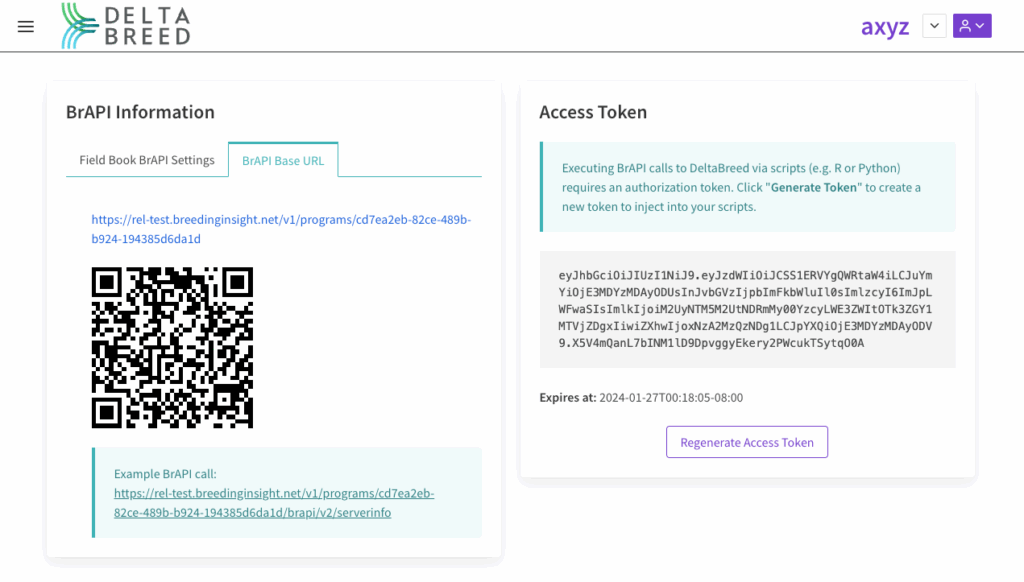

About BrAPI #
DeltaBreed is fully BrAPI (Breeding Application Programming Interface) enabled, which allows peripheral BrAPI applications to connect directly, like Field Book and R packages like ‘QBMS”.
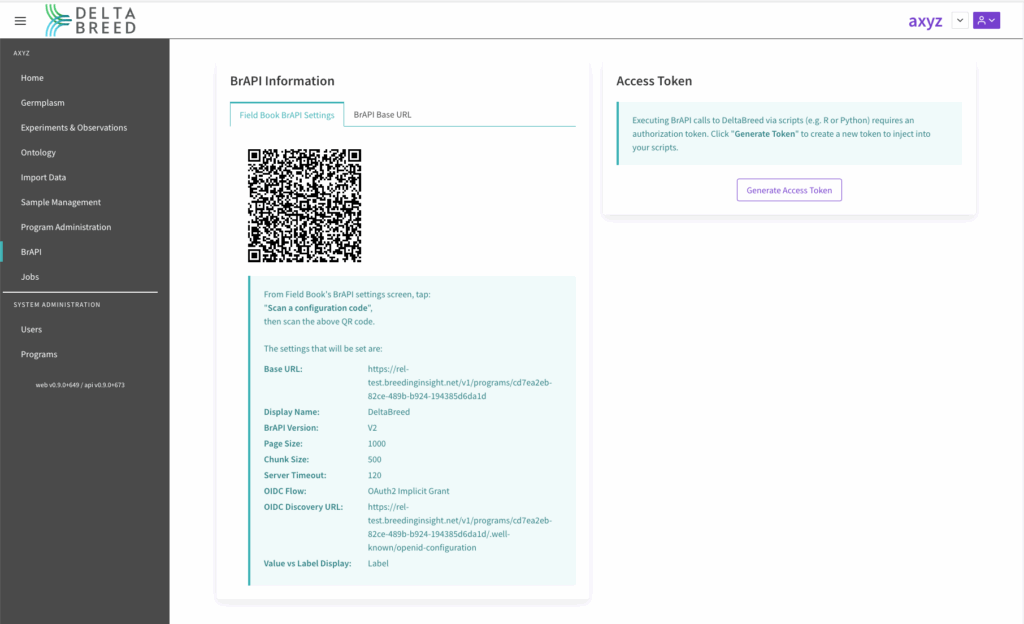
 Navigate to BrAPI from the left hand menu to access the information you need to connect peripheral BrAPI applications, including QR codes.
Field Book #
Field Book is an application for collecting experimental observations on an Android handheld device. Detailed Field Book instructions are maintained by the developers: https://docs.fieldbook.phenoapps.org/en/latest/field-book.html. Field Book is not a Breeding Insight application, but can be used to pull environments and observation variables from DeltaBreed v1.3 The ability to push observations back to DeltaBreed will be implemented at a later date.
Field Book v7.2 #
In this v7.2 Field Book release, the steps for BrAPI connection and field upload are slightly different from earlier versions. These screenshots are from the experimental BrAPI UI. Unselecting this experimental UI screen will render slightly different views.
Field Book and DeltaBreed use different terminology to describe equivalent data.
- FB “Field” = DB “Environment”
- FB “Trial” = DB “Experiment”
- FB “Trait” = DB “Observation variable”
- FB “ObservationUnitName” = DB “ExpUnitID”
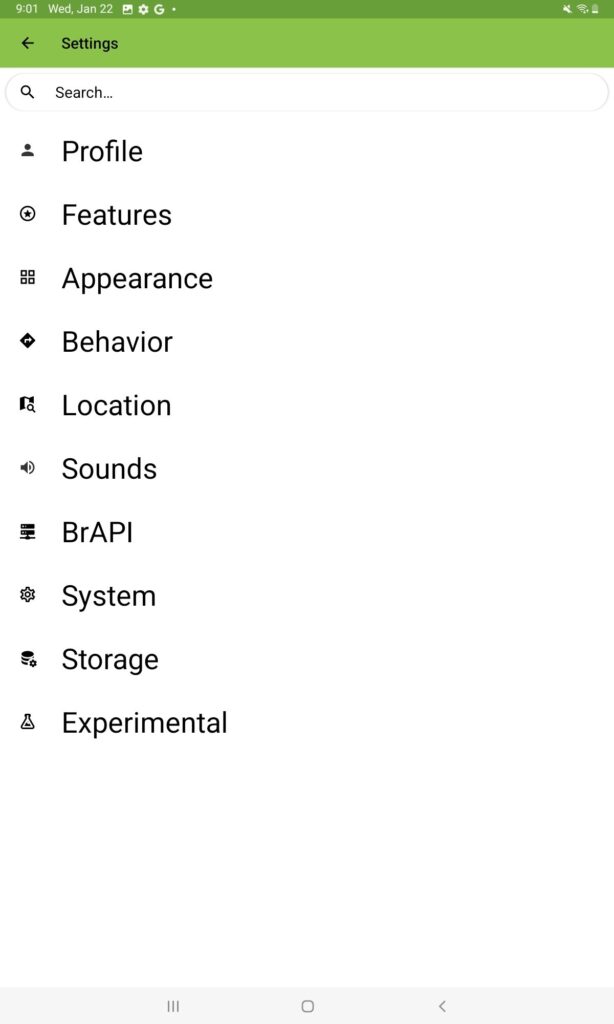
 In the “Settings” screen, select “BrAPI”.
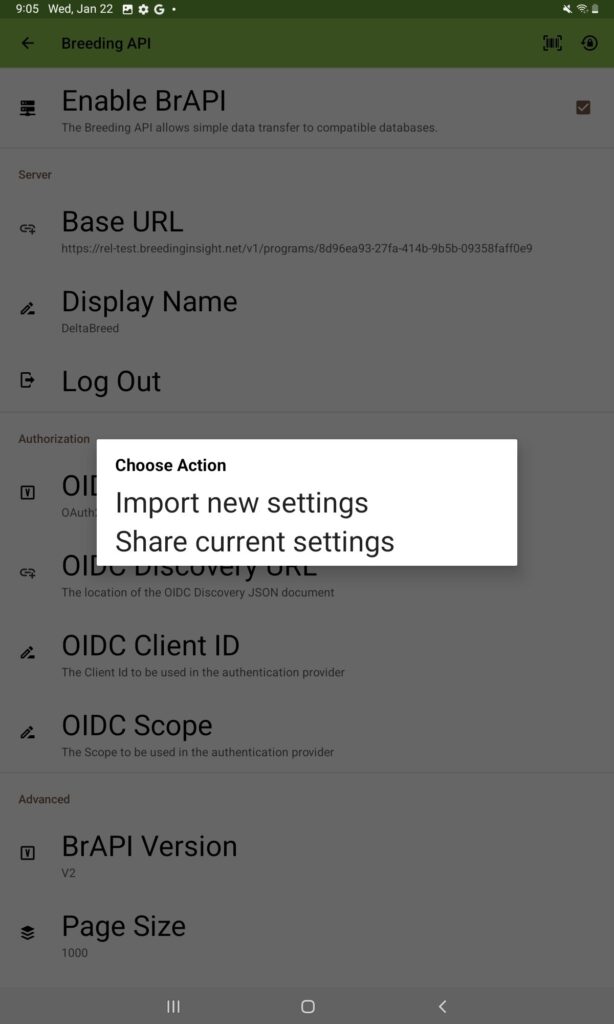
Select the box for “enable BrAPI”
Select “import new settings”.
Scan.
The DeltaBreed QR code only works with the QR scan feature located in the upper right hand corner, and will not work with the Base URL scan feature.
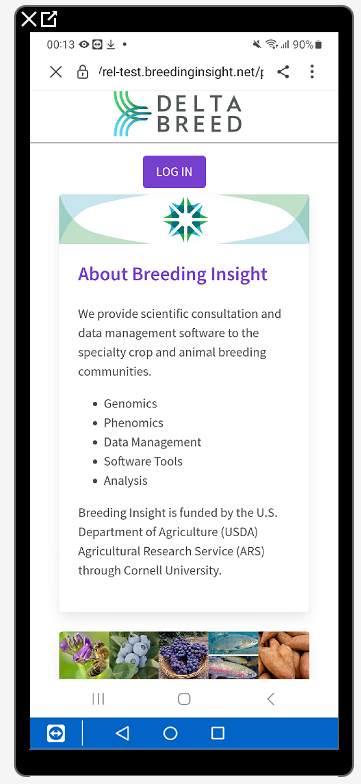
Scan the QR code located in the “BrAPI” section of DeltaBreed.
Log in to DeltaBreed.
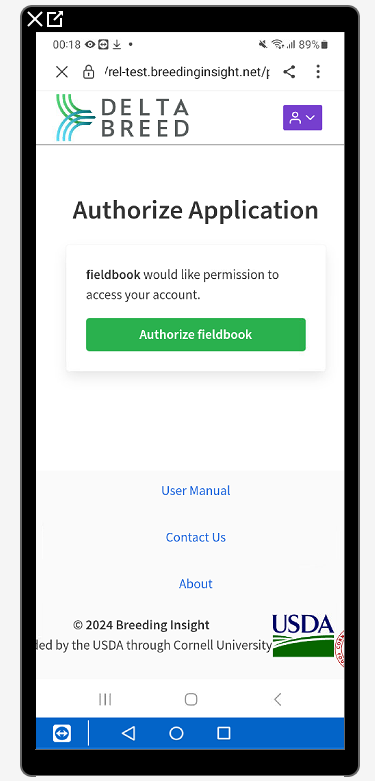
Authorize Field Book access.
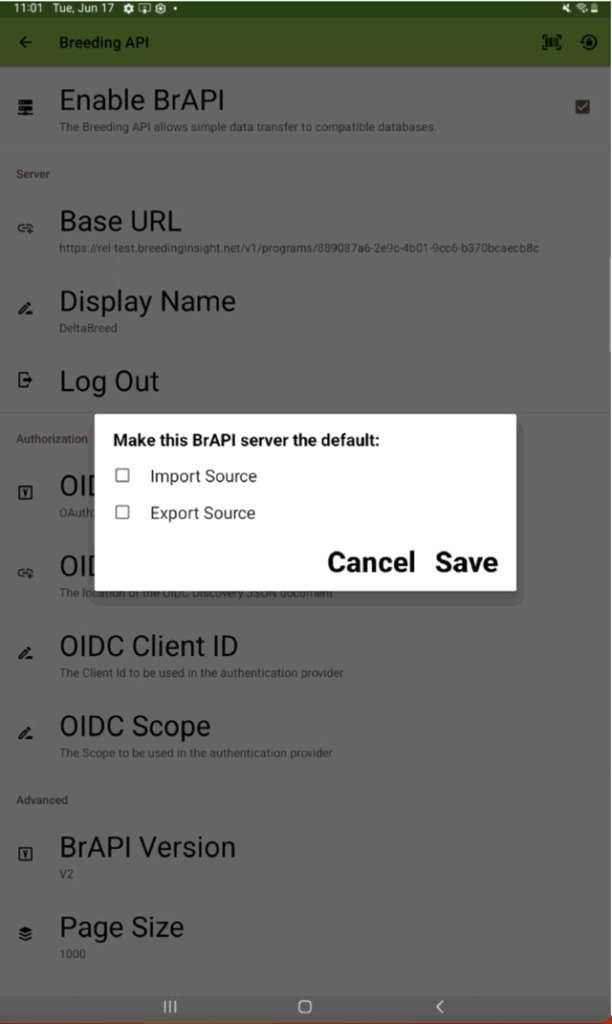
Select “Import Source” and then save.
You can choose Export Source, but keep in mind that DeltaBreed v1.3 will not accept observations pushed from FieldBook via BrAPI. More development is needed.
Pull DeltaBreed Environments into Field Book #
Field Book allows you to filter by fields program or trial. The DeltaBreed BrAPI settings are configured in such a way the fields are already filtered by program.
DeltaBreed v1.3 supports both top level (ie: plot) and sub-entity level (ie: plant), but users cannot pull both into Field Book at the same time.
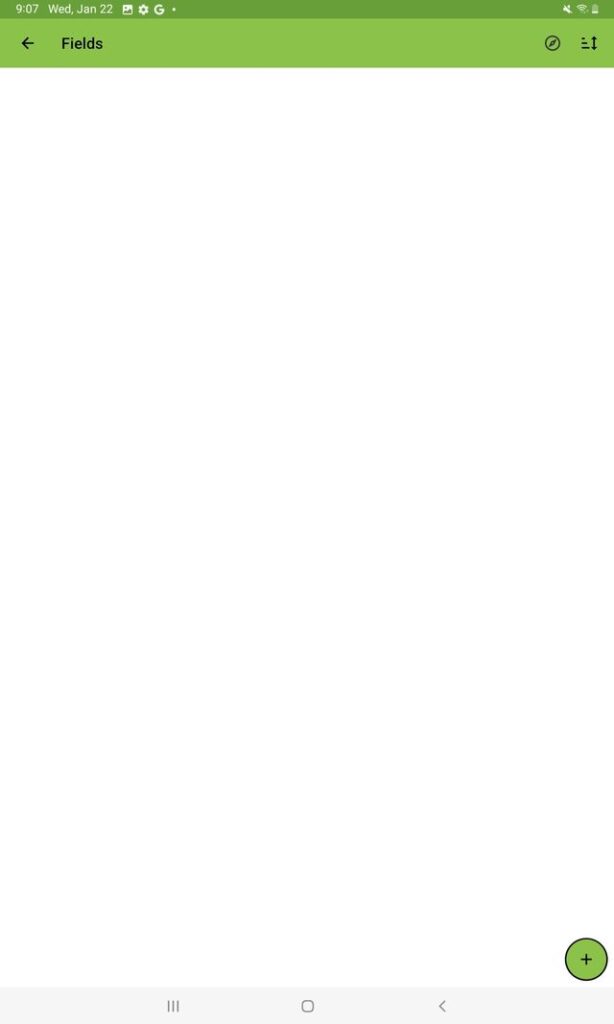
Navigate to the “Fields” screen and click on the green + button to add fields.
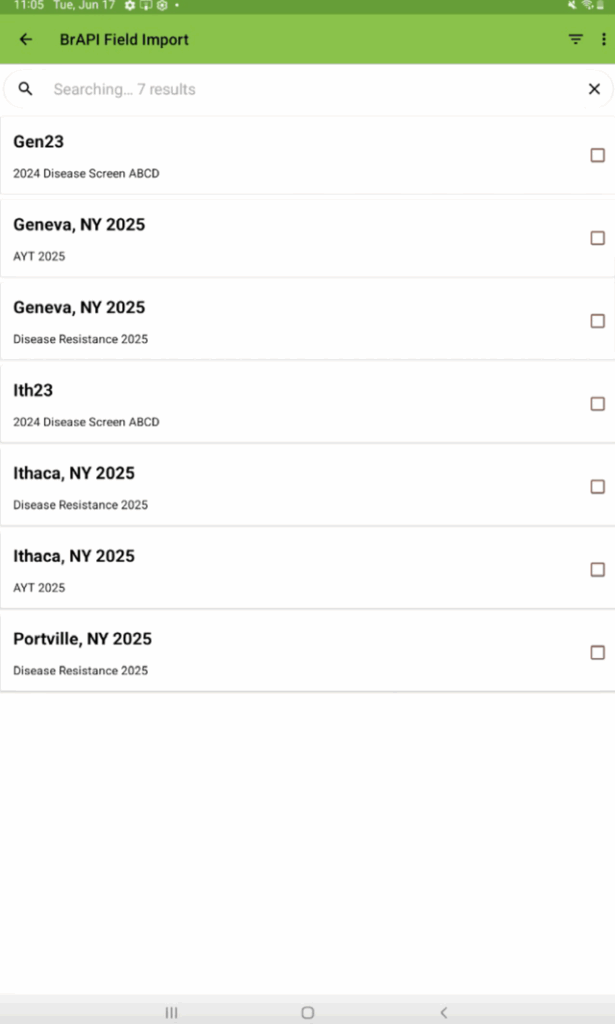
Select the field you wish to load. Then select “import”.
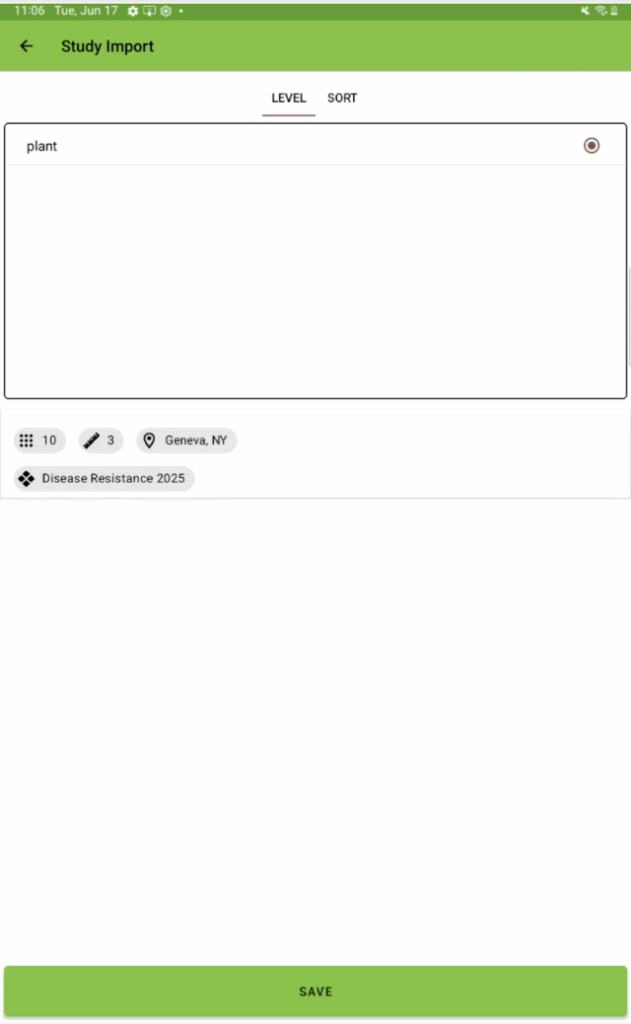
Select various levels an sorting options from this screen and then click “save”.
Depending on the level of data collection, to help sort a user will need to use different sorting features.
Sub-entity level: ExpUnitID then ObservationUnitName
Top level: ObservationUnitName
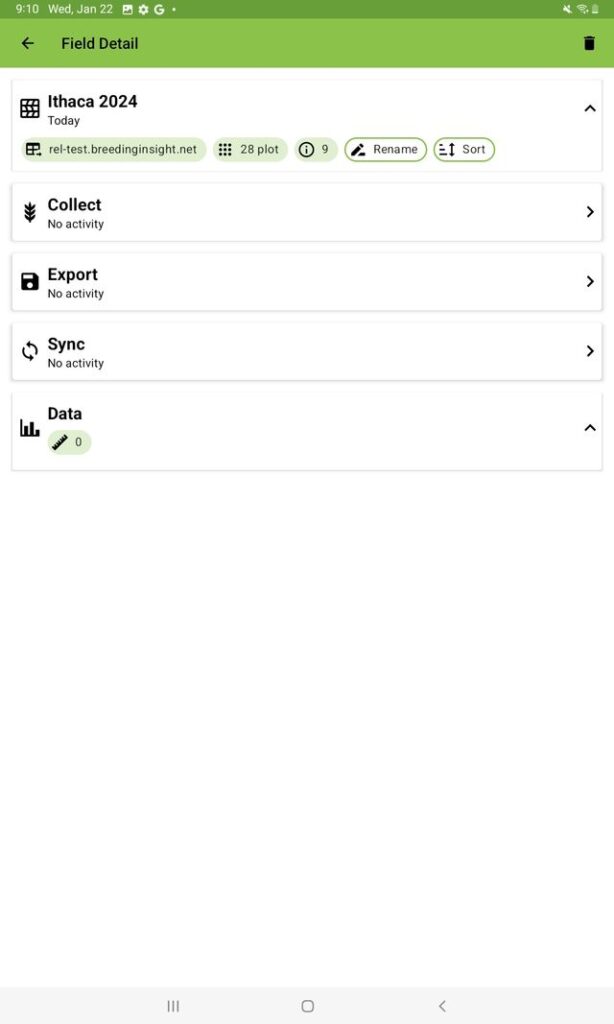
Select the field to see related options.
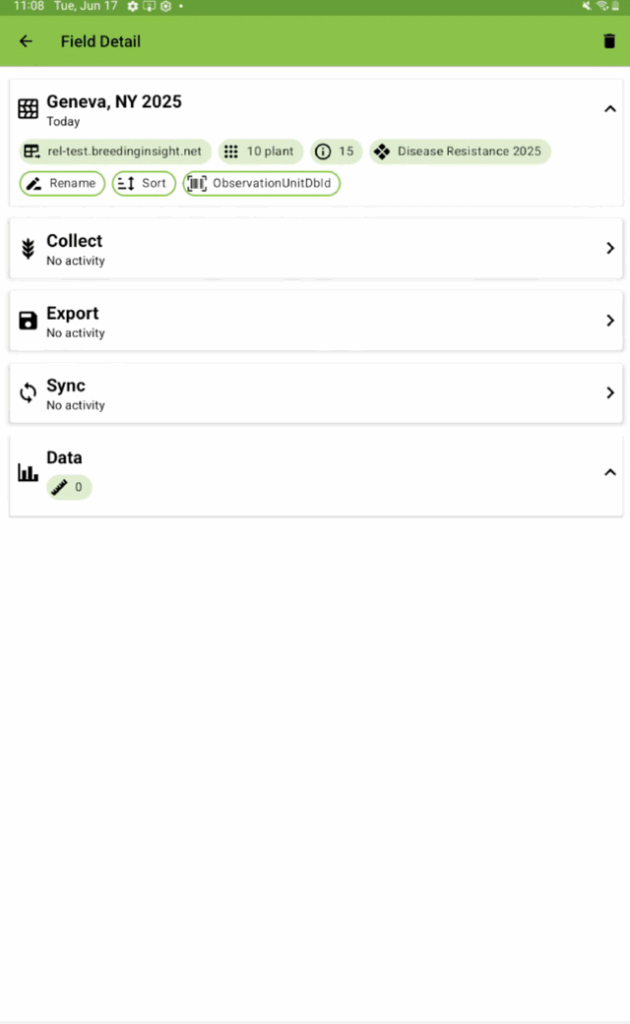
The field of interest is now loaded to Field Book. Select “collect” to enable data collection.
Note that BrAPI loading of an environment from DeltaBreed simultaneously loads the observation variables associated with that environment.
Pull DeltaBreed Ontology (Traits) Not Associated with a Specific Experiment #
Users can also pull ontology or trait terms from DeltaBreed that are not associated with a specific experiment. Note that Field Book and DeltaBreed still need to be connected via BrAPI.
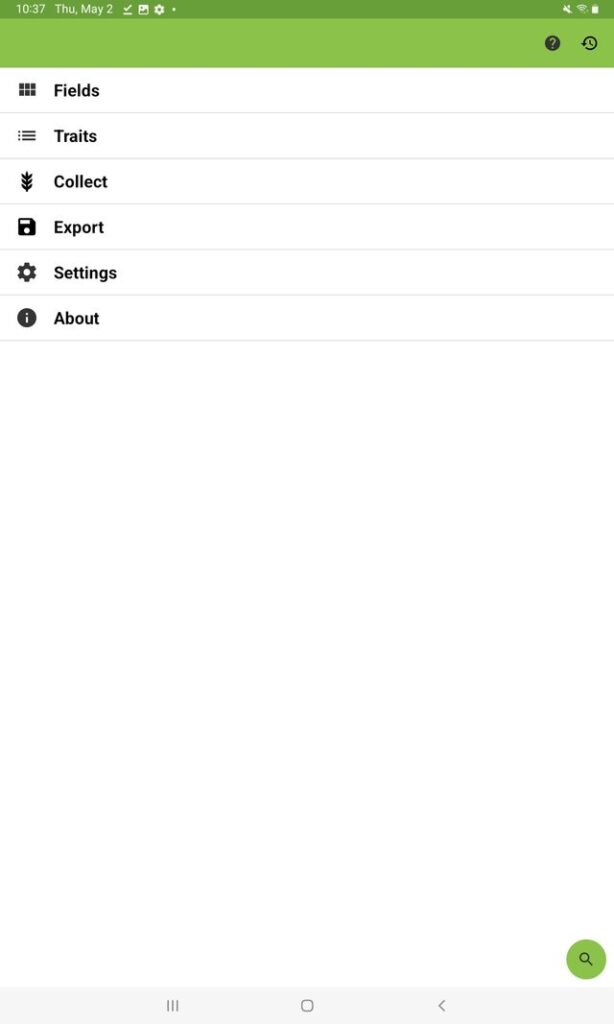
In the Field Book menu, click on “Traits”.
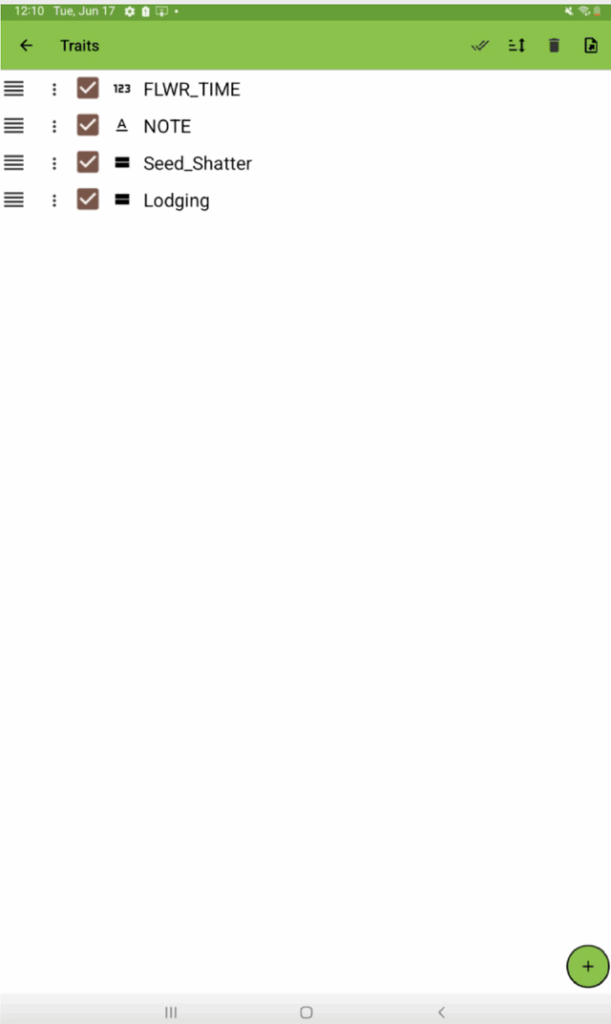
Click on the green + sign at the bottom right of the screen.
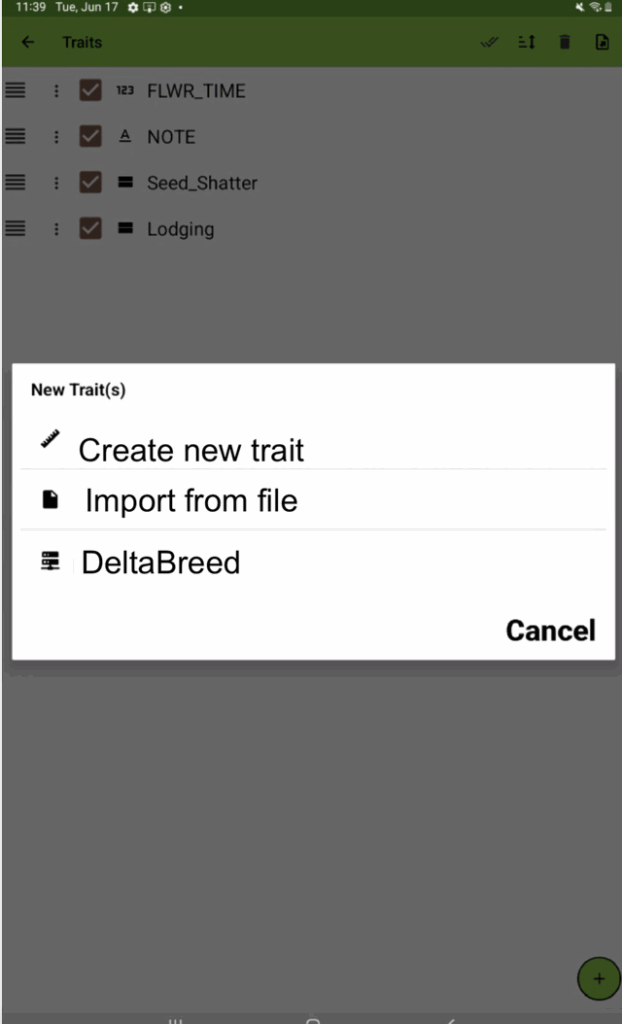
Click on the DeltaBreed text at the bottom of the list.
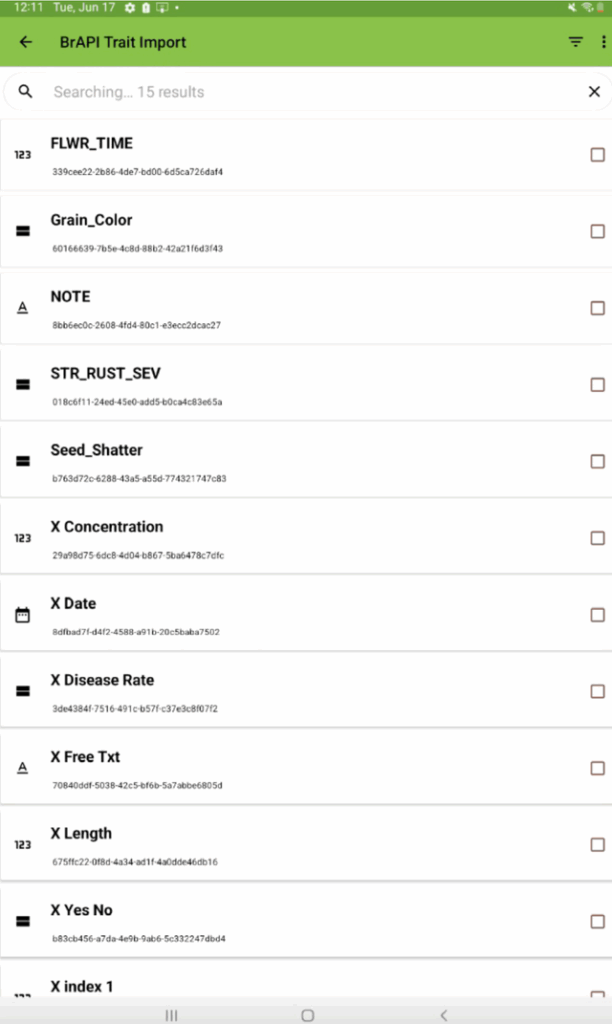
Select the traits you want to pull by clicking the checkbox. Then click on “Import”.
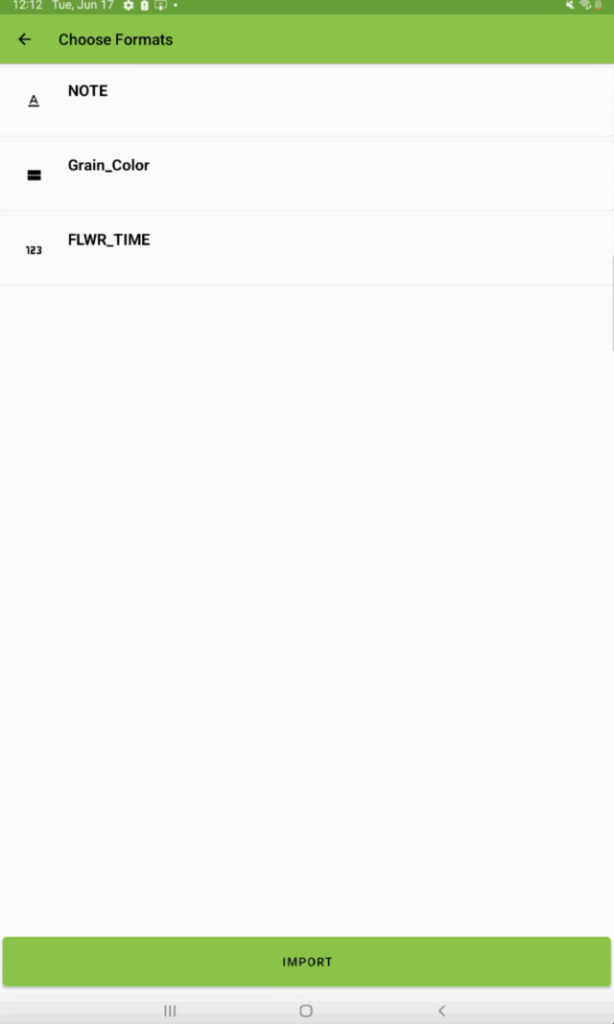
Click “import”.
Note that traits that are already in Field Book will not be duplicated.
Ontology terms (traits) are now ready for data collection.
BrAPI Base URL & Access Token #
DeltaBreed allows users to generate and regenerate temporary access tokens. These tokens along with the BrAPI Base URL can be used to connect any BrAPI enabled application to DeltaBreed v0.9 for the purposes of pulling data from the system.